Camtasia Alternative for Mac (2026): 5 Options Compared
Camtasia costs $299.99 and targets eLearning creators. Here are 5 Mac screen recording alternatives for demos, tutorials, and everyday recordings.
Camtasia costs $299.99 for a one-time license (or $179.88/year for Essentials, $599/year for Pro) and is built for eLearning creators who need a full video editor, SCORM export, and interactive quizzes. If you're recording product demos, tutorials, or documentation and don't need any of that, you're paying for features you won't use.
This post covers 5 Camtasia alternatives for Mac, what each one does, and who each one is for. We built one of them — Rekort — so we'll be clear about that and honest about where other tools do things better.
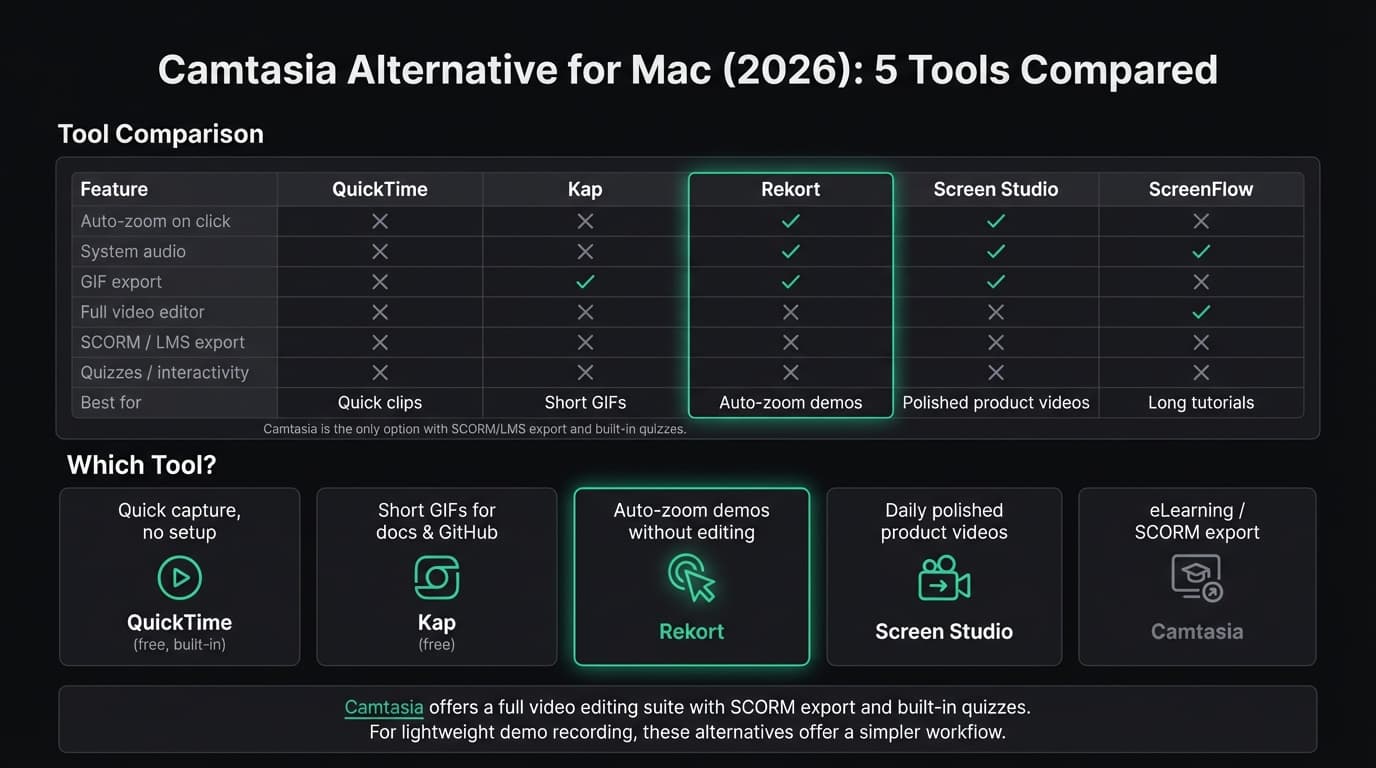
Quick comparison#
| Tool | Price | Auto-zoom | Full editor | GIF export | Best for |
|---|---|---|---|---|---|
| QuickTime | Free (built-in) | No | No | No | Quick informal captures |
| Kap | Free | No | No | Yes | Short GIFs for docs |
| Rekort | $79 or $9/mo | Yes | No | Yes | Auto-zoom demos and tutorials |
| Screen Studio | $29/mo or $108/yr | Yes | No | Yes | Polished daily product videos |
| ScreenFlow | $169 | No | Yes | No | Long tutorials with editing |
QuickTime Player#
Price: Free, built into macOS
QuickTime is on every Mac. File > New Screen Recording, or press Cmd+Shift+5 for the Screenshot toolbar. Select your area and record. No download, no setup.
What it does well:
- Already installed. No configuration required.
- Records full screen or a selected area.
- Microphone audio works reliably.
- Saves as .mov, easy to share or convert.
- Fast when you need a quick capture.
Where it falls short:
- No system audio. Capturing what your computer plays requires installing BlackHole and configuring a multi-output device in Audio MIDI Setup.
- No auto-zoom. The recording captures your screen as-is, which means tiny UI elements on a Retina display.
- Trim only. You can cut the start and end, nothing else.
- No GIF export.
Who it's for: Quick bug reports, informal screen shares, and captures that don't need to look polished. If the video never leaves your team, QuickTime is enough.
Who should look elsewhere: Anyone making customer-facing demos, onboarding videos, or tutorials. Viewers can't see what you're clicking on a 2560×1600 display without zoom.
Continue reading
A Simpler Alternative
Auto-zoom on click, focused timeline editing, MP4 & GIF export. $9/month, $49/year, or $79 lifetime.
Kap#
Price: Free and open-source
Kap is a lightweight menu bar app for Mac. Click the icon, draw a selection, record, and export as GIF. It does one thing well.
What it does well:
- Free with no restrictions or watermarks.
- Clean interface. No setup, no configuration.
- GIF export with compression control.
- Records to GIF, MP4, WebM, and APNG.
- Plugin system for uploading to Giphy, Imgur, and other services.
Where it falls short:
- No auto-zoom or click highlighting.
- No system audio capture.
- No backgrounds, padding, or any visual effects.
- Kap is an Electron app, not a native Mac app.
- The GitHub repository shows slower update cadence than earlier years.
Who it's for: Developers recording short GIFs for documentation, GitHub issues, and README files. If the workflow is "record 10 seconds, export as GIF, paste it in," Kap is the fastest path. See our GIF screen recorder for Mac guide for a deeper comparison.
Who should look elsewhere: Anyone recording product demos, tutorials, or anything where viewers need to see what's being clicked. Kap has no zoom and no system audio.
Rekort#
Price: $9/month, $49/year, or $79 lifetime
Full disclosure: this is our app.
Rekort is a native Mac screen recorder built around automatic zoom on click. Select an area, record your screen, and every click automatically zooms into what you're interacting with. Preview the recording with zoom applied, adjust the zoom level and timing, then export as MP4 or GIF.
What it does well:
- Auto-zoom on every click. Record normally, and Rekort adds zoom automatically so viewers can see exactly what's happening. No editing required.
- System audio and microphone captured natively without extra setup.
- MP4 and GIF export with zoom applied.
- Adjustable zoom level, zoom duration, and easing in the preview.
- Native Swift/SwiftUI app. No Electron, no subscription bloat.
- Simple pricing: $9/month, $49/year, or $79 lifetime.
Where it falls short:
- Rekort has a focused timeline for trim, split, ripple delete, speed, and zoom events, but it is not a multi-track production editor.
- Webcam overlay is available with position and size controls; unlike Screen Studio, Rekort does not remove the camera background.
- Color and image backgrounds, padding, rounded corners, and shadow are available.
- No SCORM export, interactive quizzes, or LMS integrations.
- Requires macOS 14 Sonoma or later.
Who it's for: Developers, DevRel engineers, product marketers, and founders who record demos, PR walkthroughs, and tutorials regularly and want the output to look polished without video editing. If the reason you looked at Camtasia was for screen recording with professional results — and not for eLearning or SCORM — Rekort covers that at a fraction of the cost.
Who should look elsewhere: Anyone who needs a full video editor with cuts, transitions, and annotations. Or anyone building eLearning content that needs LMS export. Camtasia or ScreenFlow is the better fit for those workflows.
Screen Studio#
Price: $29/month or $108/year (as of March 2026)
Screen Studio is the most feature-complete screen recorder on Mac. It adds automatic zoom on click, cinematic camera movements, webcam overlay with background removal, custom backgrounds, padding, and cursor effects. Record your screen and the result looks professionally edited.
What it does well:
- Best-in-class auto-zoom with smooth, configurable camera movements.
- Webcam overlay with background removal.
- Custom backgrounds, padding, rounded corners, and shadows for polished framing.
- Cursor highlight ring, click animation, and size adjustment.
- Multiple export formats: MP4, GIF, and WebM.
- Regular updates with new features.
Where it falls short:
- Expensive for occasional use at the current $29/month or $108/year.
- Lots of options. If you want to record and export quickly, the settings can slow you down.
- The editor is focused on recording polish and is not a full multi-track post-production timeline.
- No SCORM export or LMS integrations.
- macOS only.
Who it's for: Anyone making polished product videos, demo recordings, or tutorials daily who needs the full production suite — camera overlays, background effects, cursor animations, and the most advanced auto-zoom available. See our Screen Studio alternative guide for a broader comparison.
Who should look elsewhere: Occasional recorders or anyone who doesn't need camera overlays and backgrounds. The $108/year price is hard to justify if you record once a week. And like Rekort, Screen Studio doesn't handle eLearning exports.
ScreenFlow#
Price: $169 one-time
ScreenFlow combines screen recording with a full multi-track video editor. If you need to record your screen and then cut, annotate, and produce a long-form tutorial in the same app, ScreenFlow covers that without leaving macOS.
What it does well:
- Full timeline editor with layers, transitions, callouts, and annotations.
- Records screen, webcam, and iOS devices simultaneously.
- System audio captured natively.
- Supports longer video productions with real editorial control.
- Mac-native app with good performance on Apple Silicon.
Where it falls short:
- $169 one-time. The second-highest price on this list after Screen Studio's $108/year.
- No auto-zoom on click. You add zoom keyframes manually in the timeline. It works, but it's time-consuming for demos with many clicks.
- No GIF export.
- No SCORM export or interactive quizzes.
- The interface has aged compared to newer apps.
Who it's for: People who produce longer tutorial content — 10+ minute YouTube videos with real cuts, annotations, and transitions — and want one app for recording and editing. For more detail, see our ScreenFlow alternative comparison.
Who should look elsewhere: Anyone who wants quick, polished recordings without editing time. And if you need eLearning features, Camtasia is still the stronger option there.
What Camtasia does better than all of these#
To be fair: none of these tools replace Camtasia for what Camtasia is actually built for.
Camtasia's strongest use case is eLearning and corporate training content. It exports to SCORM 1.2 and SCORM 2004 for LMS platforms like Moodle, Cornerstone, and Articulate RISE. It supports interactive quizzes that learners can complete inside the video player. The 2026 version added AI-powered audio cleanup for removing background noise without a separate tool.
If you work in instructional design or L&D, you probably already know this. For everyone else — developers, product teams, SaaS founders — those features aren't what you need from a screen recorder.
The other place Camtasia has an edge: cross-platform. Camtasia runs on Mac and Windows with the same project format, so teams with mixed operating systems can share project files. None of the tools on this list do that.
Decision guide#
"I need to capture something right now." QuickTime. Already on your Mac.
"I need short GIFs for documentation or GitHub." Kap. Free, fast, exports GIFs well.
"I record demos and tutorials and want auto-zoom with light editing." Rekort if the $79 lifetime plan, local MP4/GIF, webcam, and backgrounds fit. Screen Studio if webcam background removal, transcripts, iOS capture, and deeper cursor polish justify $108/year.
"I make long tutorial videos and need a video editor too." ScreenFlow. Mac-native, $169, full timeline editor.
"I build eLearning courses for an LMS." Camtasia. None of the alternatives here export to SCORM or support interactive quizzes.
"My team is split between Mac and Windows." Camtasia. It's the only cross-platform option with a shared project format.
For a broader look at screen recorders on Mac, see our best screen recorder for Mac guide. For more on auto-zoom specifically, see screen recording with zoom effect. For more alternatives in this category, see our Screen Studio alternative guide.
Ready to record?
Rekort auto-zooms every click so your screen recordings look professional. No video editing required.
Download for MacmacOS 14+ · $9/month, $49/year, or $79 lifetime
Related Articles
Best Screen Studio Alternatives for Mac: Pick by Workflow (2026)
15 min read
OBS Alternative for Mac: Screen Recording Without the Complexity
10 min read
Cap Alternative for Mac: Auto-Zoom Without the Cloud
8 min read
Cursorful Alternative: Native Mac Auto-Zoom Screen Recording
7 min read
Descript Alternative for Mac: Screen Recording Without the Learning Curve
8 min read