Best Screen Recorders with Webcam Overlay for Mac (2026)
Compare Mac screen recorders with webcam overlay: Rekort, Screen Studio, Loom, OBS, and ScreenFlow, plus a private camera and microphone preflight test.
A webcam overlay—sometimes called a facecam—shows your camera in a small window over a screen recording. On Mac, Rekort, Screen Studio, Loom, OBS Studio, and ScreenFlow can all record screen and webcam together. The useful choice is not “which app has a camera?” but where the file goes, whether click zoom is automatic, how much editing you need, and whether the camera background must be removed.
Before comparing apps, use the private webcam and microphone test to check the actual devices, framing, and input level. The preview and level meter run in the browser without recording or uploading the stream.
Research note: DataForSEO reported 20 US monthly searches for “screen recorder with webcam mac” on July 23, 2026, with difficulty 68 and $3.53 CPC. The live SERP mixed Reddit, Apple, Screen Studio, Bandicam, forums, and video results; People Also Ask focused on simultaneous screen-and-camera capture. That result set favors a direct compatibility answer and a working preflight tool over another generic list.
Quick comparison#
| App | Webcam overlay | Price | File output | Auto-zoom |
|---|---|---|---|---|
| Screen Studio | Yes | $9–$29/mo | Local file | Yes |
| Loom | Yes | Free–$24/user/mo | Cloud workspace/link | No |
| OBS Studio | Yes | Free | Local file | No |
| ScreenFlow | Yes | $169 one-time | Local file | No |
| Rekort | Yes | $9/mo, $49/yr, or $79 lifetime | Local MP4/GIF | Yes |
| QuickTime | No | Free (built-in) | Local file | No |
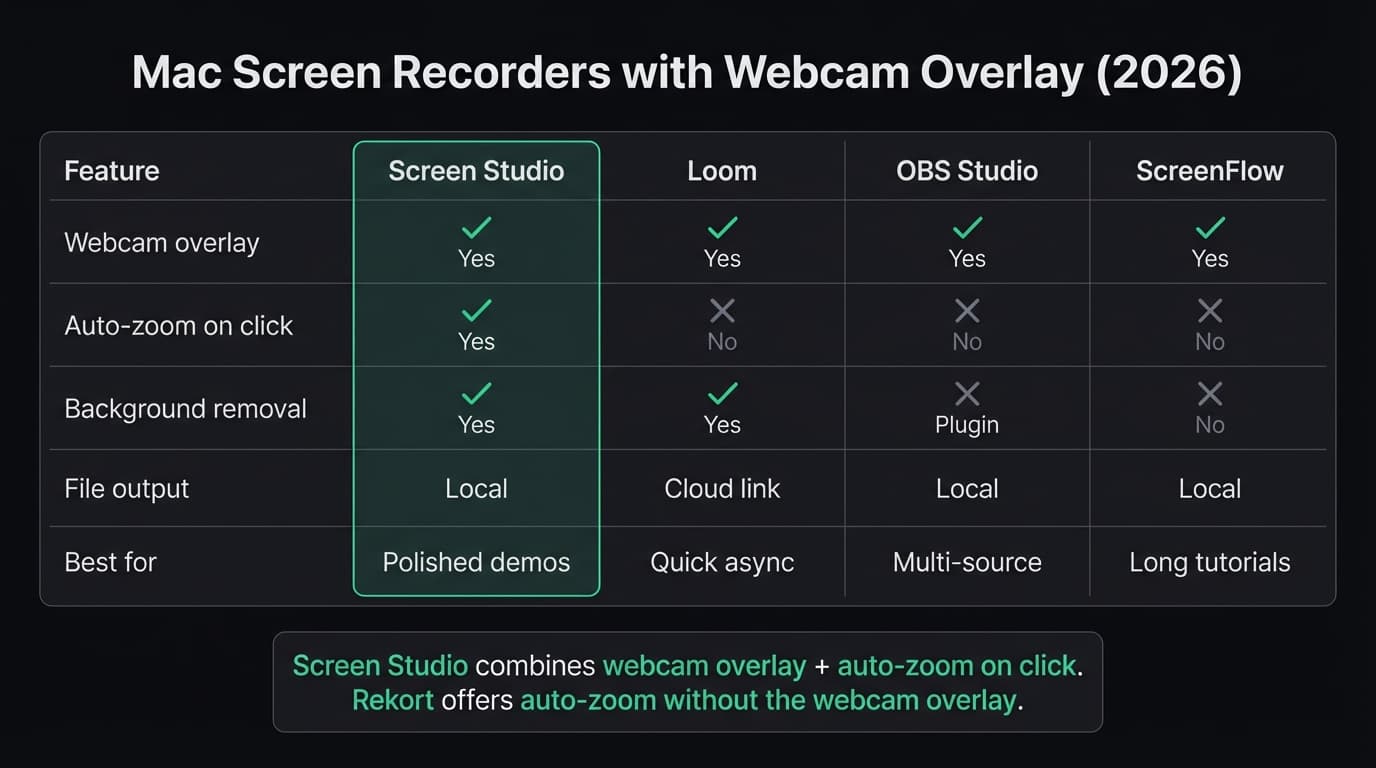
What actually matters for webcam overlay#
Three things determine whether a webcam overlay implementation works in practice:
Overlay positioning. A corner bubble works for many use cases, but it can cover the control you need to demonstrate. Rekort lets you set position and size; products with deeper camera-layout systems may offer additional shapes or automatic movement.
Background removal. If you're recording somewhere other than a clean background, blur and virtual background support matter. Screen Studio and Loom both include this; OBS needs a plugin.
Where the recording ends up. Loom stores videos in the cloud and shares them via link. Screen Studio, OBS, and ScreenFlow save local files. This isn't a quality difference — it's a workflow difference that affects how you share and store recordings.
Continue reading
The Screen Recorder That Zooms for You
Record your screen on Mac — every click auto-zooms to what matters. No manual keyframing.
Screen Studio#
Price: $9/month (annual) or $29/month. No lifetime purchase option as of September 2025.
Screen Studio is the most polished webcam overlay implementation available for Mac. The app automatically composites your webcam into the recording and repositions it if your cursor gets too close — so it never obscures what you're clicking on.
What it does well:
- Webcam overlay that auto-adjusts to avoid covering the cursor
- Background blur and replacement on the camera feed
- Background noise removal on the audio
- Auto-zoom on click alongside the webcam overlay — the only app on this list that combines both features
- System audio and microphone recording natively, no extra setup
- Export to MP4, GIF, and WebM
Where it falls short:
- Subscription-only pricing since September 2025. At $9/month on the annual plan, you're paying $108/year with no option to own it outright
- The feature set is broad, which means the settings panel has a lot of options for anyone who just wants a quick recording
Who should use it: Product marketers, DevRel, and content creators who produce polished demos regularly and want webcam overlay plus auto-zoom without manual editing. If that's your daily workflow, Screen Studio's automation justifies the subscription. For a broader look at alternatives, see our Screen Studio alternatives comparison.
Who shouldn't: Occasional recorders or anyone sharing async updates internally. The subscription cost doesn't make sense for low-frequency use.
Loom#
Price: Free (25 videos, 5-minute limit per video), $18/user/month Business, or $24/user/month Business + AI on the official monthly pricing checked July 23, 2026. Loom advertises a 17% saving for annual billing.
Loom built its reputation on one workflow: record and share a link. The camera bubble is live the moment you start recording, no configuration required. When you stop, a shareable URL is ready to paste into Slack or email.
What it does well:
- Screen and camera recording in a single click — the camera bubble appears automatically
- Camera bubble is repositionable after recording, in the editor
- Background blur and virtual backgrounds
- Free plan covers the core screen + camera workflow
- Transcripts, chapter markers, and timestamped comments on paid plans
Where it falls short:
- Loom's core value depends on a hosted workspace and share page rather than a local-only workflow
- The free plan caps recordings at 5 minutes per video with a maximum of 25 videos per person
- No auto-zoom. Screen content plays back flat, so viewers can't follow detailed UI interactions on a high-resolution display
Who should use it: Teams sharing async updates, quick walkthroughs, or recorded feedback where a link is more useful than a file. If you need local file output, auto-zoom, or recordings longer than 5 minutes, Loom's free plan doesn't cover it.
OBS Studio#
Price: Free and open-source
OBS is the most capable free option for combining screen and webcam. Set up a scene with your screen as one source and your webcam as another, position each where you want them, and record. The output is a single composited file with both elements exactly where you placed them.
What it does well:
- Free with no watermarks, recording time limits, or feature gates
- Position and resize the webcam overlay anywhere on screen
- Record multiple sources simultaneously: screen, webcam, images, text overlays
- System audio capture on macOS 13 Ventura and later (added in OBS 30)
- Active plugin ecosystem for extending functionality
Where it falls short:
- Designed for live production. The interface is organized around scenes, sources, transitions, and an audio mixer rather than a one-button demo workflow
- No background removal on the webcam feed without a third-party plugin
- No auto-zoom or click highlighting
- No built-in editor — you record, then edit in a separate app
Who should use it: Anyone already comfortable with OBS, streamers who want local recordings with webcam compositing, or anyone willing to invest setup time in exchange for zero cost. If OBS's complexity is the problem, see our OBS alternative for Mac comparison.
Who shouldn't: Anyone who wants to record a demo and share it in under 5 minutes. The setup overhead makes OBS a poor fit for casual or quick recordings.
ScreenFlow#
Price: $169 one-time (standard license, as of March 2026)
ScreenFlow records screen, webcam, microphone, and system audio simultaneously, then brings everything into a multi-track timeline for editing. The webcam appears as a separate video track you can resize, reposition, and apply effects to.
What it does well:
- Records screen and webcam as independent tracks, giving full control in post-production
- Full multi-track video editor: trim, cut, transitions, callouts, and annotations
- Records multiple screens and connected iOS devices simultaneously
- System audio capture works natively
- One-time purchase — no subscription required
Where it falls short:
- $169 is a significant upfront cost, though you pay once
- No auto-zoom. Adding zoom to clicks requires manually placing keyframes in the timeline for every click you want to highlight
- Webcam placement requires editing time — it doesn't automatically composite like Screen Studio
- The interface has a learning curve if you're not already familiar with timeline editors
Who should use it: Anyone making longer tutorial or training content that needs proper video editing — cuts across multiple clips, callouts, transitions, and accurate webcam placement in post. The $169 one-time cost is better value than a subscription if you record consistently over time. For a full comparison, see our ScreenFlow alternative guide.
Who shouldn't: Anyone who wants a quick recording workflow. Adding webcam overlay in ScreenFlow always involves editing time.
Rekort#
Price: $9/month, $49/year, or $79 lifetime
Full disclosure: this is our app.
Rekort records a full screen, window, or selected area with an optional webcam overlay, system audio, and microphone. You can set webcam position and size. Clicks become adjustable zoom events, and the focused editor supports split, ripple delete, trim, segment speed, backgrounds, and local MP4 or GIF export.
Rekort does not currently remove the webcam background, create transcripts, or host a team review page. Screen Studio is stronger for camera-background removal and cursor polish; Loom is stronger for hosted collaboration; OBS is stronger for multi-source scenes.
Rekort is the fit when the deliverable is a local product demo, bug reproduction, PR walkthrough, tutorial, or GIF and the combination of webcam plus click zoom matters.
What about the built-in macOS options?#
QuickTime Player can record your screen or your camera — not both simultaneously as an overlay. Combining them requires two separate recording sources and external editing.
macOS Presenter Overlay (added in macOS Sonoma, requires Apple Silicon M1 or later) places your webcam feed over a shared screen during video calls in FaceTime, Zoom, and other compatible apps. This is a video conferencing feature, not a screen recorder. The Screenshot toolbar (Cmd+Shift+5) doesn't capture Presenter Overlay.
Which app should you use?#
Webcam overlay, auto-zoom, local export, and lifetime pricing: Rekort. Use the free trial to check camera placement and zoom behavior on your own app.
Webcam background removal, cursor smoothing, and deeper presentation polish: Screen Studio.
Share a link in under a minute: Loom. Record screen and camera, stop, paste the link. The free plan works for quick, short recordings.
Free, local recordings with full compositing control: OBS Studio. No cost, no limits, full flexibility. Worth the setup time if you record regularly.
Longer tutorials that need full video editing: ScreenFlow. Records screen and webcam as separate tracks for precise editing. One-time pricing is better value than a subscription for consistent use.
Buyer-stage path: If you are comparing current products, see Rekort vs Screen Studio and pricing. If you are still preparing a take, run the webcam and microphone test first.
For a full comparison of Mac screen recorders — including tools without webcam overlay — see our best screen recorder for Mac guide.
Ready to record?
Rekort auto-zooms every click so your screen recordings look professional. No video editing required.
Download for MacmacOS 14+ · $9/month, $49/year, or $79 lifetime
Related Articles
Best Screen Recorder for Mac (2026) — Honest Comparison
13 min read
QuickTime Screen Recording: Complete Guide (2026)
9 min read
AI Screen Recorder: Which Features Actually Matter (2026)
5 min read
Best Screen Recording Software in 2026
11 min read
How to Make YouTube Videos with Screen Recording (Mac, 2026)
8 min read