High-Quality Screen Recording on Mac: What Actually Matters
Resolution, frame rate, codec, bitrate — what each setting does and how to get the sharpest recordings on Mac, including Retina and 4K displays.
Most Mac screen recordings look worse than they should. Not because of hardware limits — modern Macs record at higher resolution than most people realize. The problems are usually codec settings, export choices, or compression happening downstream when you share the file.
Here's what actually controls high-quality screen recording on Mac, and how to get the most out of each.
What determines recording quality#
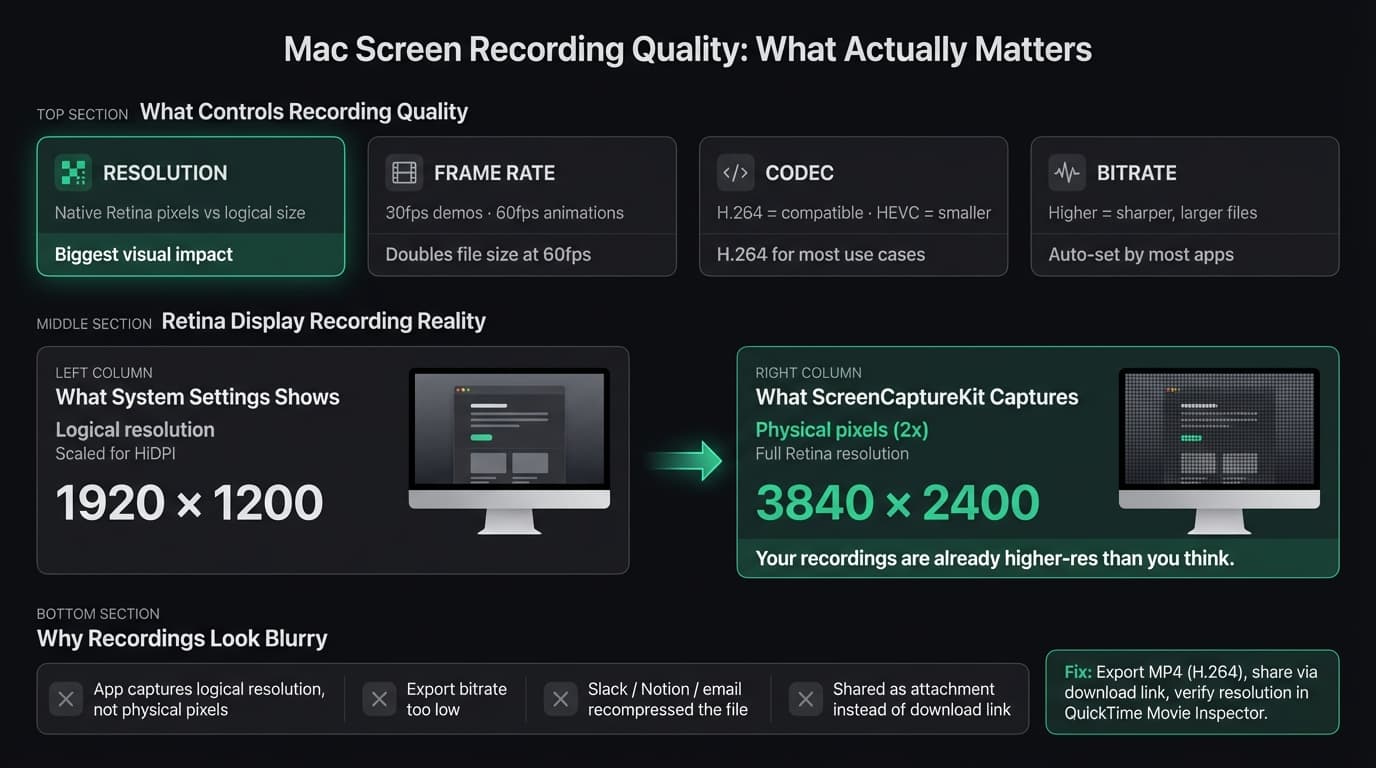
Four settings matter:
Resolution — how many pixels the recording captures. This is where most confusion happens, especially on Retina displays.
Frame rate — how many frames per second. 30fps vs 60fps changes how smooth motion looks.
Codec — how the video is compressed. H.264 (widely compatible), HEVC/H.265 (smaller files, similar quality), or ProRes (uncompressed, for editing).
Bitrate — how much data per second the encoder uses. Higher bitrate means better quality and larger files.
Resolution and bitrate have the biggest visible impact. Frame rate matters mainly if you're recording animation or fast motion.
Retina displays already record at high resolution#
On a Retina MacBook Pro, what the display shows and what the pixels are aren't the same number. macOS uses HiDPI scaling: at 2x, a display set to 1920×1200 in System Settings has 3840×2400 physical pixels.
ScreenCaptureKit — the framework macOS uses for screen recording — can access the full pixel count. That means on a 14" MacBook Pro, you can capture at the full 3024×1964 native pixel resolution. A 16" MacBook Pro goes higher.
The catch: not every app preserves that resolution. Some apps capture at logical resolution (the "1920×1200" number in System Settings) and scale up, which looks soft. Others give you the full Retina output.
To check what your app actually captured: record a clip, open it in QuickTime Player, then go to Window > Movie Inspector. The resolution shown there tells you whether you got the physical pixels or the logical ones.
Continue reading
Screen Recording Made Simple
Rekort captures your screen with system audio and auto-zooms every click automatically.
QuickTime's quality and limits#
QuickTime Player (File > New Screen Recording, or Cmd+Shift+5) captures at full Retina resolution by default and encodes with H.264. The output is good for most use cases.
Two limitations can matter for specific workflows:
- No bitrate control. QuickTime picks compression settings automatically. You can't set a target bitrate for critical recordings where quality matters above file size.
- Export options. When you export via File > Export As, pick the highest quality option that fits. The "4K" or "1080p" options preserve more quality than "Low" or the default.
For basic recordings, QuickTime quality is fine. Where it falls short is at the feature level — no system audio, no zoom on click, no GIF export. For a full breakdown of what QuickTime can and can't do, see the QuickTime screen recording guide.
30fps vs 60fps#
macOS captures at up to 60fps. For most screen recordings, 30fps is the right choice:
| Use case | Recommended fps |
|---|---|
| Product demos | 30fps |
| Software tutorials | 30fps |
| UI walkthroughs | 30fps |
| Fast animations / transitions | 60fps |
| Scroll physics demos | 60fps |
| Game or video recording | 60fps |
At 1080p, a 1-minute recording is roughly 50–100MB at 30fps depending on the codec and content. At 60fps, expect roughly double. For product demos where you're clicking through menus and navigating flows, 30fps captures every action cleanly — the motion isn't fast enough to need 60fps.
Codec choices: H.264, HEVC, ProRes#
H.264 in MP4 is the default for a reason. It plays on every device, browser, and platform without extra plugins. File sizes are manageable. Quality is good at reasonable bitrates. If you're not sure what to use, use this.
HEVC (H.265) in MP4 delivers roughly the same visual quality at about half the file size. The trade-off is hardware requirements — HEVC needs macOS 10.13+ for native playback and a compatible device for hardware decoding. For recordings you'll embed on a website or share via Notion, HEVC is worth considering if your audience is on modern hardware.
ProRes is for post-production. A 1-minute 1080p/30fps ProRes recording can be 1–2GB. Video editors want ProRes because it holds up under repeated exports and color grading. For direct sharing with viewers, it's unnecessary.
Most screen recording apps default to H.264. You don't need to change this for standard demos and tutorials.
Why recordings look blurry after you share them#
The most common cause of quality loss isn't the recording itself — it's compression that happens downstream.
Platforms that recompress video:
- Slack recompresses video attachments on upload
- Notion recompresses embedded videos
- Twitter/X compresses video aggressively
- iMessage reduces quality for non-WiFi delivery
- Email often runs attachments through compression filters
To preserve quality: share via a download link (Google Drive, Dropbox, iCloud Drive) rather than a direct attachment. The recipient downloads the original file instead of a platform-compressed version.
If you need to compress a recording for web delivery, do it intentionally with HandBrake or ffmpeg — you control the bitrate rather than letting the platform decide.
Auto-zoom and perceived quality#
Technical quality (resolution, bitrate, frame rate) is only part of what makes a screen recording useful to viewers. The other part is whether they can follow what's happening.
On a 3840×2400 capture of a full MacBook Pro display, a small button, input field, or menu item is still tiny. Viewers squint, rewind, or lose track of what you're clicking.
Auto-zoom on click addresses this directly. The recording zooms into each click target so viewers can see exactly what you're interacting with, even at lower export resolutions. A 1080p recording with auto-zoom is more legible than a 4K flat capture for most demo and tutorial use cases.
Apps like Rekort record at full Retina resolution and apply auto-zoom in the preview — you can adjust the zoom level, timing, and easing before exporting. Screen Studio has a similar feature with more customization options. Both are covered in the best screen recorder for Mac comparison.
For a broader look at what macOS recording tools can do, see screen capture on Mac and how to record your screen on MacBook.
Quick settings reference#
| Setting | Recommendation |
|---|---|
| Resolution | Full native pixels (Retina), not logical |
| Frame rate | 30fps for demos; 60fps for animations |
| Codec | H.264 for compatibility; HEVC for smaller files |
| Export container | MP4 (not .mov unless handing off to a video editor) |
| Sharing method | Direct download link, not attachment |
| Verify output | Check resolution in QuickTime Movie Inspector |
What actually moves the needle#
For most people making product demos, tutorials, and bug reports, the limiting factor isn't the recording resolution — it's legibility. A 4K flat capture is technically impressive and practically hard to follow when nobody can see what you're clicking.
If you want technically sharp output: record at full Retina resolution, use H.264 or HEVC in MP4, stay at 30fps unless you're recording animations, and share via link.
If you also want recordings that viewers can actually follow: use an app with auto-zoom on click. The perceived quality goes up more than any bitrate or resolution change.
For audio quality in screen recordings — system audio, microphone, and routing — see the how to record screen with audio on Mac guide.
Ready to record?
Rekort auto-zooms every click so your screen recordings look professional. No video editing required.
Download for MacmacOS 14+ · $9/month, $49/year, or $79 lifetime
Related Articles
How to Record Screen with Audio on Mac (2026 Guide)
10 min read
Where Do Screen Recordings Go on Mac?
6 min read
Screen Recording for Instagram: Reels & Stories from Your Mac
7 min read
How to Screen Record a Zoom Meeting on Mac (2026)
7 min read
Screen Record on Mac with Sound: System Audio + Mic (2026)
7 min read