GIF vs Video for Product Demos: When to Use Each
GIF or video for your product demo? Covers when each format works, file size trade-offs, and a clear decision framework by context and use case.
The choice between GIF and video for product demos comes down to three things: where the demo will live, whether audio adds anything, and how long the interaction takes to show.
Neither format is universally better. GIFs render anywhere, play automatically, and need no video player. Video carries audio, compresses far more efficiently, and handles long recordings without bloating. The right format depends on the context.
When GIFs work better#
Documentation and GitHub. Animated GIFs render natively in GitHub READMEs, issues, pull requests, and wiki pages. They display inline in markdown without a video player, without JavaScript, and without requiring viewers to click play. If your audience is developers reading docs or reviewing PRs, GIFs are the correct default for short UI interactions. See GIF for GitHub README for the full workflow.
Contexts where autoplay matters. GIFs play automatically wherever they render. Embedded video autoplays selectively — some platforms require muted video for autoplay, others disable it entirely. In Slack, Notion, Linear, and most markdown-based documentation tools, GIFs start playing immediately when someone views the content. There's no "click to play" friction.
Short, looping interactions. For demos under 20 seconds showing one specific interaction — clicking a button, filling a form, triggering an animation — GIFs work well. They loop continuously, so viewers who missed the first pass see it again without doing anything.
No hosting infrastructure. A GIF is a file. Attach it to an email, drop it in Slack, embed it in markdown, commit it to a repo. You don't need a video host, CDN, or streaming account. For internal tools documentation, support tickets, or changelog posts, that simplicity matters.
Continue reading
GIFs That Actually Look Good
Record with auto-zoom, export as GIF. Perfect for docs, READMEs, and pull requests.
When video works better#
Anything with audio. GIFs have no audio track. If your demo includes narration, a voiceover, or system audio that's relevant to the experience — a product making a sound, music playing, a notification going off — you need video. This alone disqualifies GIFs from many marketing demos and tutorial walkthroughs.
Longer recordings. File size is the hard constraint. A GIF is typically 5-10x larger than an equivalent MP4 at the same visual quality. A 10-second UI recording at 800×500 might be 3-6MB as a GIF and under 1MB as MP4. At 60 seconds, a GIF of a full-screen recording becomes too large to distribute practically. For anything over 30 seconds, video is the better format.
Complex, multi-step flows. When you need to walk someone through a long workflow — setting up an account, completing a multi-screen process, configuring settings — video with narration keeps viewers oriented. GIFs loop silently; when the interaction spans more than three or four steps, viewers can lose track of where they are.
Marketing pages. Video players on web pages support pause, rewind, and fullscreen. Visitors move at their own pace. For a two-minute product overview on a landing page, video gives you controls that GIFs don't — plus analytics on play rate and completion.
Anywhere file size is constrained. A compressed MP4 fits in places a GIF won't. If you're embedding a demo in an email or attaching it to a support ticket with a 5MB limit, video is more practical.
Choosing by context#
| Context | Format | Why |
|---|---|---|
| GitHub README | GIF | Renders natively in markdown |
| Pull request description | GIF | Plays inline, quick to scan |
| Slack / Teams | Either | Both render inline; GIF is simpler |
| Notion doc | Either | Both work equally |
| Marketing landing page | Video | Audio, controls, analytics |
| MP4 (linked) or GIF | Depends on size limits | |
| Twitter / X | Either | Both play natively |
| YouTube | Video | GIFs aren't a supported format |
| App documentation | GIF (short) / Video (long) | GIFs for steps, video for walkthroughs |
| Changelog post | Either | Short interaction = GIF; narrated = video |
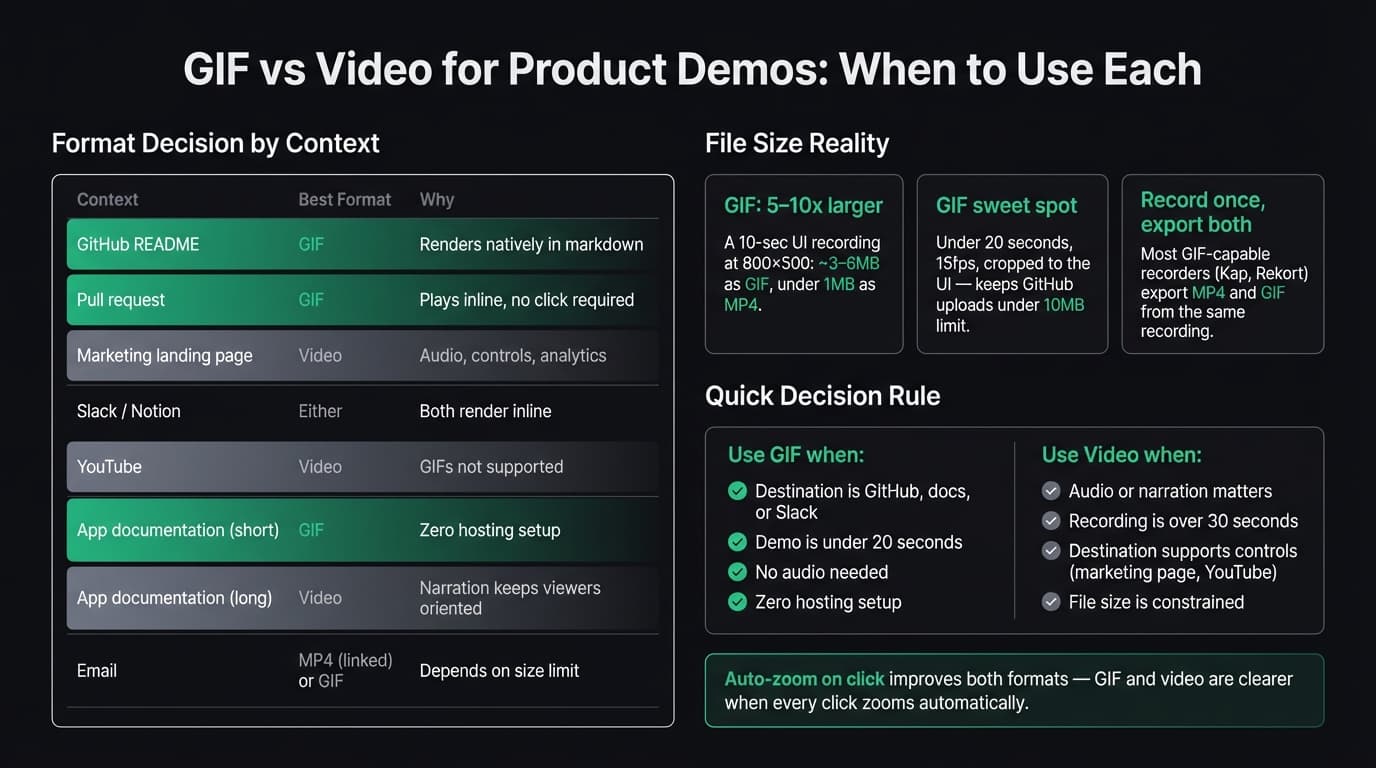
File size reality check#
GIF's biggest disadvantage is file size. The format dates to 1989 and wasn't designed for video — it uses a limited compression algorithm and a 256-color palette cap. Every frame is stored almost independently, and modern UI recordings with gradients and shadows compress poorly.
Rough GIF sizes for UI recordings at 15fps:
- 600×400, 10 seconds → 1-3MB depending on content movement
- 800×500, 20 seconds → 4-8MB
- 1440×900, 30 seconds → 20MB or more
The equivalent MP4 is typically one-fifth to one-tenth the size. GitHub's file upload limit for drag-and-drop to issues and PRs is 10MB. Above that, you need external hosting.
Three settings that keep GIFs small without hurting readability:
- Crop to the relevant area. Recording a 600×400 window rather than a full 1440×900 desktop cuts file size by roughly 75% before any other compression. It also focuses the viewer's attention.
- 15fps instead of 30fps. For click-based UI interactions, the difference is hard to notice. File size drops by roughly half.
- Keep it short. Under 20 seconds for README demos. Under 10 seconds for PR comments. GIFs loop — a tight 8-second clip that shows one interaction is more useful than a 45-second walkthrough that loses people on the second loop.
How auto-zoom changes the equation#
One practical problem with any full-screen recording — GIF or video — is readability. When someone clicks a button in a 1440×900 capture, that button occupies a handful of pixels. Viewers squint to follow what's happening.
Auto-zoom addresses this at the recording stage. Apps like Rekort and Screen Studio zoom into each click target automatically during recording. The exported file — whether GIF or MP4 — shows the interaction clearly at full size without requiring tight cropping to force readability.
For GIFs specifically, this changes the format math: you don't need to record at tiny dimensions to make UI elements readable. A full-screen recording with auto-zoom applied exports cleanly. And because the zoom brings the camera in on the active area, the effective pixel change per frame is lower, which helps with file size too.
See screen recording with zoom effect for how auto-zoom works during capture.
Converting between formats#
You don't always have to choose before recording. Most GIF-capable Mac recorders let you export to either format from the same recording session.
Record once, then decide what the destination needs:
- GitHub README → export as GIF
- Marketing page → export as MP4
- Both → export both from the same take
Kap and Rekort both offer GIF and video export from a single recording. If you're using QuickTime (which outputs .mov), you can convert to GIF after the fact with ffmpeg or an online converter, though direct-export tools give better quality because they can apply dithering and palette optimization at export time rather than converting after the fact.
A simple decision rule#
Use GIF when:
- The destination is GitHub, markdown docs, or any platform where video autoplay is unreliable
- The demo is under 20 seconds and shows one specific interaction
- Audio doesn't add anything to the demo
- You want zero hosting setup
Use video when:
- Narration or audio is part of the demo
- The recording is over 30 seconds
- The destination is a marketing page or a platform with video controls
- File size matters and you can use a video host
Either works for: Slack, Notion, blog posts, Twitter/X, and most documentation tools that support both formats.
For recording GIFs on Mac, see screen to GIF on Mac and how to record a GIF on Mac. For a tool comparison across all GIF recorders for Mac, see GIF screen recorder for Mac. For longer product demos that benefit from narration and video format, how to make a product demo video covers the full workflow.
Ready to record?
Rekort auto-zooms every click so your screen recordings look professional. No video editing required.
Download for MacmacOS 14+ · $9/month, $49/year, or $79 lifetime